
EDI InStar Texting
Full Texting
The Texting Window; We have an interface with Twilio for full texting. Start by typing a name, if you have a contact or just enter a phone number and send a text. Attach files using Drag n Drop from any place in InStar or in Windows.

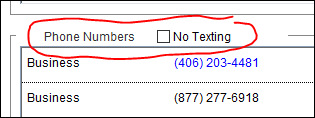
InStar Contacts can be sent a text if they have a Mobile Phone on file AND the contact has not opted out of receiving texts. There is a check box on Contact Setup to check in to prevent sending texts to a contact that has requested not to receive texts.
- This is all done within InStar and the Agency has the choice of using 1 text phone number for the Agency and all or selected users can use this number by checking in “Agency Texts” in User Setup. Alternatively each user can have their own text number in addition to using the Agency Number.
- We are working on a way to auto reply and forward Texts when the user is not available. This is a future item.
- ALL Texts are stored with Letters just like other correspondence consisting of letters, email and faxes, so there is only 1 place to find written exchanges.
- Due to regulations for businesses sending Texts to Mobile Phones, there is wording on the bottom of each text send for the User’s Name and some Opt Out wording. If you Customer should request to not be sent Texts please mark the Contact “No Texting” to prevent someone from accidently sending another text. *This wording will be made editable for each agency in the future.
- Texts are threaded meaning that InStar compiles all sent and received texts into a thread in a single letter record, just like on your phone. Threading is determined by the addresses on the text, all receivers and the sender. When filing a received text the user has the option of joining that text into another text previously received to keep the thread on a subject in one letter record. (Currently there is only 1 receiver, no group texting yet but InStar users can do some interesting things from the Agency Text Number)
- There is a cost for Twilio but it is very reasonable, in line with what most agencies pay for email. After several setups and the issues presented due to government regulations for texting by business we have made the decision for EDI/InStar support to setup your text numbers as sub-accounts under EDI Concepts Inc. This is much faster and easier for the Agency rather than assisting you with this setup.
The Process
Customer Needs a Document Sent to Phone
- Create the document in the usual manner
- Print to Pending PDF
- Create your Text by opening a Text Window. See To Send a Text
- Type something, “Here is your document”
- Right click the attachment area on the Text Window and select Pending Email Attachments.
- Drag n Drop the PDF you need from Pending, EDocs or from a Windows Explorer Window.
- Send the text
- PLEASE KEEP IN MIND THERE IS A 5 MB LIMIT FOR ATTACHMENTS ON MOST SYSTEMS WITH TEXTING
- OTHER ALTERNATIVES If you have Bullzip Printer installed
- When you drop a PDF file to the Text Window choose to convert the PDF to JPG (Recommended. IF multiple pages, system will create separate files for each page)
- Print directly to the Bullzip PDF printer and create a jpg file instead of a PDF. Problem – if multiple pages only creates the first page. Useful – if printing landscape the conversion from Drag n Drop does not always change orientation.
- If conversion to JPG is an issue, send as a PDF.
To Send a Text
- Open a Texting window in one of these ways.
- Double click on a Contact Mobile Phone on the Client Window. Text number prefills.
- Click on the Other Button at the top of the Client Window and select Text. User will need to add the address to which to send.
- Add a Letter and change the Template to Text. User will need to add the addresses to which to send.
- To add addresses to a Text, the user can type a name in the Lookup Field and the system will search all Contact Mobile Phones. If not found, the Contact does not have a Mobile Phone Number.
- The user can also type an Mobile Phone in the address field. This is freeform so you can sent a text to a Mobile Phone not in your Contacts.
- Type your message, add attachments and click the Send button.
- If you expect a response back, leave the texting window open. The window will POP to the front when an answer is received. Further, if you minimize InStar, InStar will Restore itself and show the text.
- Attachments can be added by drag-n-drop from EDocs, Pending PDFs or from Windows Explorer Windows. Right click on the attachment section of the window to receive a menu with options.
